Fix Live Stream Buffering: A Step-by-Step Guide
Live stream buffering almost always has one of three causes: your Wi-Fi or connection, your device and browser, or the stream’s own source. Work through them in that order and you will usually find the culprit in ten minutes. Start by lowering the video quality and pausing other traffic on your network. If one webcam stalls while other streams run fine, the problem is probably on the source side, and no setting on your end will fix it.
This guide is written for people who watch live views of beaches, ski slopes, harbors, cities and wildlife, and who just want the picture to keep moving. It covers what buffering really is, how to tell where the fault sits, and the fixes in the order that saves the most time.
GlobeWebcamsFind Another Live ViewExplore webcams by location, country, category or source, and browse public or authorized views when one stream is not working well.Explore webcams on the interactive mapTL;DR
- Buffering means the player ran out of video to show. Video segments are arriving more slowly than you watch them, so the cause is delivery, not the picture itself.
- Fast fixes first: lower the quality, pause other downloads and streams, move closer to the router, refresh the page, and restart your router and device.
- A decent speed test result does not rule out buffering. Shared Wi-Fi, a weak signal, an old browser or a congested source can all stall a stream.
- Test a second webcam on a different site. If only one feed stalls, the problem is likely at its source.
- Never rely on webcam video alone for weather, road or safety decisions, whether it plays smoothly or not.
Table of Contents
- What buffering actually is
- Buffering, lag and delay are different problems
- Why live streams buffer even when your speed test looks fine
- Step 1: Work out where the problem sits
- Step 2: Lower the video quality
- Step 3: Free up your network
- Step 4: Improve your Wi-Fi
- Step 5: Clean up your browser and device
- Step 6: Restart the router, then check with your provider
- When the webcam itself is the problem
- A note on using webcams for conditions
- Finding a feed that plays well
- A quick routine to keep handy
- FAQ
- Sources
What buffering actually is
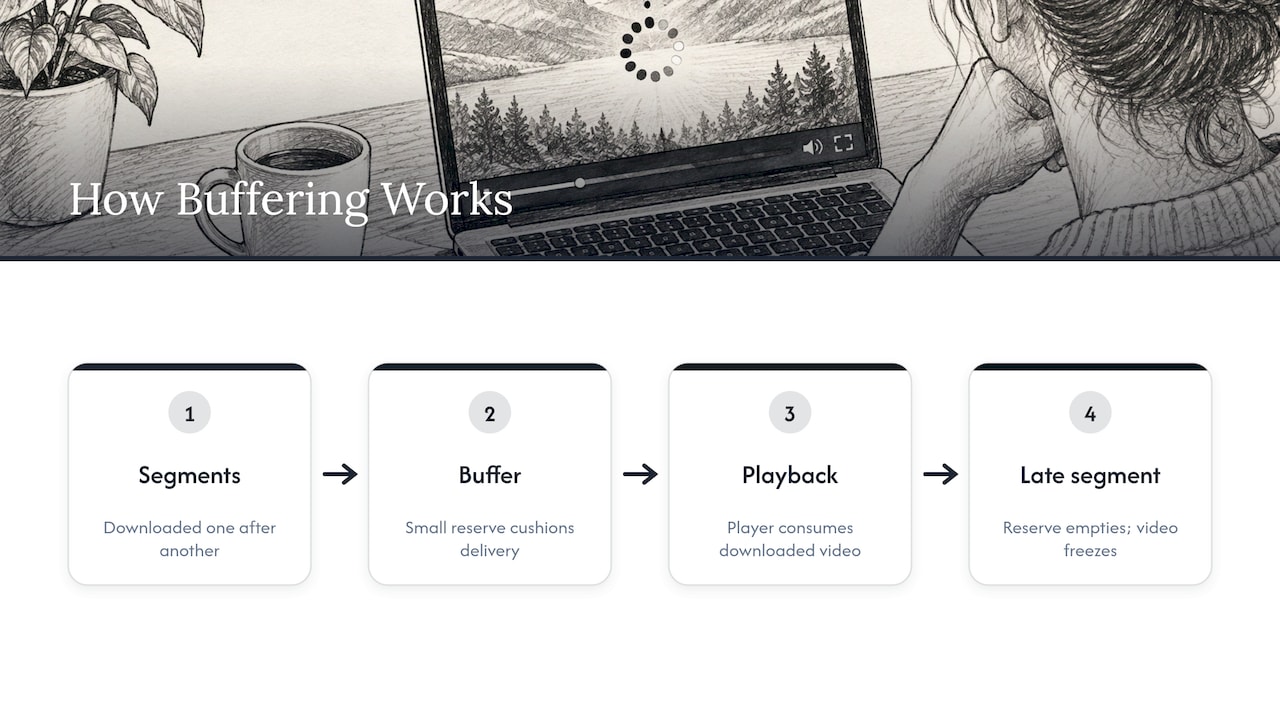
A live video is not sent as one continuous flow. It is cut into short chunks, called segments, and your player downloads them one after another. According to the Internet Engineering Task Force’s operational guidance on streaming media (RFC 9317), smooth playback requires segments to arrive at a rate that keeps pace with how fast you consume them. Both your available bandwidth and whether the next segment is actually available to fetch limit that.
The player keeps a small reserve of downloaded video, the playback buffer. The same document describes it as a cushion between delivery and consumption. If the cushion empties because the next segment is late, the video freezes and shows a spinner. That is buffering. As Cloudflare explains, the point of buffering is to pre-load video so playback can continue through a brief connection hiccup. You only notice it when the hiccup outlasts the cushion.
Live streams make this harder than on-demand video. A movie can load minutes ahead. A live webcam can only buffer video that has already happened, so the reserve is thin by design. That is why a connection that handles a film without trouble can still stall on a live feed.
Buffering, lag and delay are different problems
People use these words interchangeably, and mixing them up sends you to the wrong fix.
- Buffering: playback stops and waits because the player ran out of video.
- Delay (latency): the picture plays smoothly but runs some seconds behind real time. That is normal for streams sent in segments and not a fault you can fix on your end.
- Lag: a loose term. In a webcam context it usually means a feed that skips, freezes or updates slowly.
A related point for webcam viewers: a smooth image is not proof that the view is current. Some webcams publish a still image that refreshes every few minutes, and others show a frozen frame when the camera or its link has failed. Our guide on how to verify travel and nature webcams covers checking timestamps and sources, and the piece on checking whether a wildlife feed is live applies the same logic to animal cams.
Why live streams buffer even when your speed test looks fine
A speed test measures a short burst between your device and a test server. It says little about the path to one particular webcam, or about what is happening on your Wi-Fi at that moment. Cloudflare’s explainer lists the usual suspects: shared Wi-Fi capacity, weak signal or router problems, older devices or browsers, high-definition video, interruptions at your internet provider, and overloaded networks on the streaming side.
In practice, the common patterns look like this:
| What you see | Likely cause |
|---|---|
| Every stream stalls, on every device | Your internet connection or router |
| Streams stall only in one room or far from the router | Weak Wi-Fi signal |
| Stalls start when someone else is gaming or downloading | Shared bandwidth on your network |
| Stalls on one device, fine on another | The device, browser or an extension |
| One webcam stalls, other sites play fine | The source’s server or uplink |
| Fine in the morning, poor at peak evening hours | Network congestion |
The last row matters for popular views. When a famous beach, ski resort or volcano is trending because of an event or a storm, many viewers load the same feed at once, and a small source server can struggle.
Step 1: Work out where the problem sits
Before changing settings, spend two minutes narrowing the cause. This is the step most guides skip, and it saves the most time.
- Try a second webcam from a different location. Open another feed, ideally from a different provider. If it plays cleanly, your connection is fine and the first feed has a source-side problem. Our United States webcam pages and the public webcam directory make it easy to find a comparison feed.
- Try another device on the same network. If your phone plays the stream and your laptop does not, look at the laptop, its browser or its Wi-Fi adapter.
- Switch between Wi-Fi and mobile data. If the feed plays on mobile data, your home network or provider is the weak link. If it stalls on both, the source is the likelier cause.
- Try a different browser or a private window. A clean session rules out extensions, cached files and stale cookies.
If a laptop is the odd one out and the Wi-Fi seems to be what it struggles with, these quick laptop Wi-Fi checks walk through the most common adapter and connection problems.
Step 2: Lower the video quality
This is the quickest fix and often the only one you need. Most players use adaptive bitrate streaming, which the IETF document describes as the player choosing among several available quality levels to match your changing bandwidth and device capability. The automatic choice is not always right. When your connection fluctuates, the player can keep reaching for a higher quality than you can sustain.
Open the player’s settings (usually a gear icon) and set the quality manually to a lower level, such as 720p or 480p. A scenic view usually remains perfectly watchable at a lower resolution, and a steady lower-quality picture beats a sharp one that freezes every ten seconds. If the player offers only one quality, skip to the network steps below.
Step 3: Free up your network
Cloudflare notes that several simultaneous video streams on one Wi-Fi network can approach its limit and cause slow buffering. Reducing competing use is one of the easiest tests you can run.
- Pause large downloads, game updates and cloud photo or file backups on every device.
- Close other streaming apps and video calls, including those on TVs and tablets.
- Close browser tabs you are not using. Each open tab, especially ones playing video or auto-refreshing, takes bandwidth and memory.
- If you are watching several webcams at once in a multi-view layout, drop to one and see whether the stall stops.
If the stream becomes stable once the rest of the household goes quiet, you have found the cause: your connection is simply stretched. You can then schedule heavy downloads for other times, or talk to your internet provider about a faster plan.
Step 4: Improve your Wi-Fi
Wireless problems are the most common hidden cause of buffering, because the connection from your router to your internet provider can be fast while the last few feet of Wi-Fi are poor.
- Move closer to the router. Walls, floors, mirrors and appliances weaken the signal.
- Use the 5 GHz band if your router offers it. It is typically faster over short distances than 2.4 GHz, though it covers less range. If you are a room or two away, 2.4 GHz may hold up better.
- Use a cable when you can. Plugging a laptop or streaming box into the router with an Ethernet cable removes Wi-Fi from the equation and is the cleanest test of whether Wi-Fi is the problem.
- Reposition the router. A central, raised spot with clear space around it works better than inside a cabinet or behind a TV.
If you travel, remember that hotel, campground and airport Wi-Fi is shared among many guests and often slows down at peak hours. Mobile data is often the steadier choice for watching a live view while on the road.
Step 5: Clean up your browser and device
Older browsers and overloaded devices struggle with video. Work through these in order:
- Refresh the page. A stalled player often recovers with a fresh connection to the stream.
- Open the page in a private or incognito window to rule out extensions and cached data.
- Clear the browser’s cache and cookies.
- Update the browser or app to the latest version.
- Try a different browser altogether.
- Restart the device, which clears memory and background processes.
On an older computer or phone, closing other programs can help as well. Video decoding uses processor and memory, and a device under strain can stall even on a perfect connection.
Step 6: Restart the router, then check with your provider
A glitchy router is a classic, and unglamorous, cause. Unplug the modem and router, wait about 30 seconds, plug the modem in first, and give both a few minutes to reconnect. This clears stuck connections and often restores normal speeds.
If the stalls continue across all devices and all sites, the problem is probably upstream. Run a wired speed test at different times of day and keep the results. Evening slowdowns that disappear in the morning point to congestion, and your internet provider is the right party to contact, along with any outage page they publish. If your connection is generally slow, switching to a lower quality (Step 2) is the practical workaround while you wait.
When the webcam itself is the problem
Sometimes you do everything right and a single feed still stutters. That points to the source. Webcam feeds depend on the camera’s own internet link, the host’s server and how the video is encoded. Cloudflare’s live-stream troubleshooting documentation describes two source-side signals broadcasters watch: a consistent keyframe interval of 2 to 8 seconds, and an upload speed that keeps up with the video’s duration. When uploads fall behind, many viewers see buffering or freezing at the same time. You cannot change any of that as a viewer.
Signs that a source-side issue is the cause:
- Other feeds play normally on the same device and network.
- The problem shows up on several devices and on mobile data.
- The feed freezes at the same moments for everyone, or the timestamp stops moving.
- The problem clears up on its own after some hours.
In that case, try again later, or open the original provider’s page, which every GlobeWebcams listing links back to. Independent webcams run by local councils, resorts, ports and road authorities can go offline for maintenance, power cuts, storms or network faults, and a feed that worked yesterday may not today. Our guides on coastal webcams, bridge webcams and train webcams explain what to check in each setting before you trust a view.
A note on using webcams for conditions
A stable picture is not the same as reliable information. If you are checking snow, surf, wind or a road before a trip, treat the webcam as one visual clue and take the actual decision from official forecasts, road authorities and local warnings. A frozen or buffering feed should never be read as “nothing is happening”, and a smooth one should never replace a weather service or a road report.
Finding a feed that plays well
We built GlobeWebcams to help you browse public and authorized webcams by place, country and category, with an interactive map and a link back to each original provider. If one view will not load, you can switch to another nearby location, or another category, in a couple of clicks and see whether the problem follows you. Start with the worldwide webcam map or read how to find live webcams worldwide by place or topic. For a wider look at what kinds of streams exist and how to watch them, see webcam streams online. We apply source-rights, availability and quality checks before publishing a webcam page, and our methodology page explains how.
A quick routine to keep handy
If you want a short checklist to run whenever a live view stalls:
- Refresh the page and lower the quality.
- Open a second webcam from a different source.
- Pause downloads and other streams on your network.
- Get closer to the router or plug in a cable.
- Try a private window or another browser, and update your browser.
- Restart your device, then your modem and router.
- If only one feed fails, come back later or visit the original provider’s page.
Most buffering clears at step 1, 3 or 4. The rest are for stubborn cases.
FAQ
Why does my live stream keep buffering when my internet speed is good?
A speed test measures one short burst to one server, not the route to a particular webcam or the state of your Wi-Fi. Shared bandwidth, a weak wireless signal, an outdated browser or a busy source server can all stall a live feed. Try a second stream and a second device to see which part is at fault.
How do I stop live stream buffering quickly?
Lower the video quality manually, pause other downloads and streams, and move closer to the router. Then refresh the page and restart your router if it persists. These steps cover the most frequent causes.
Is buffering the same as lag or delay?
No. Buffering is playback stopping because the player ran out of downloaded video. Delay is the steady gap between real time and what you see, which is normal for segmented live video. A feed can have a delay of several seconds and still play without a single stall.
Why does only one webcam buffer while everything else works?
That usually points to the source: the camera’s internet link, the host’s server or heavy viewing at that moment. Your own network is probably fine if other streams play normally. Check back later or visit the original provider’s page.
Can I trust a webcam for weather or road conditions if it plays smoothly?
Use it as a visual clue only. Check official forecasts, road authorities and local warnings for decisions about travel or safety, and confirm that the image has a current timestamp.
Sources
- RFC 9317: Operational Considerations for Streaming Media (IETF)
- What does buffering mean? Buffering in video streaming (Cloudflare)
- Troubleshooting a live stream (Cloudflare Stream docs)
Recommended
- Bridge Webcams Live: How to Find and Use Them
- Live Underwater Webcams: Sources, Schedules and…
- Webcam Streams Online: How to Find, Watch and…
- Safari Live Cameras: How to Watch Wildlife and…
Webcam availability and conditions can change without notice. GlobeWebcams does not operate most listed cameras; feeds and imagery remain under the control of their original providers. Do not rely on webcam imagery alone for weather, road, travel or safety decisions.